SEE THE REAL PRODUCT
Evidence you can inspect.
Decisions you can review.
Explore real captures from the proposal workspace, then download an actual saved-revision package. No account is needed for this tour.
Fictional data, actual interface. These captures come from an isolated Fictional Acorn evaluation project. Every company capability and certification is synthetic. Screenshots are read-only; they make no AI requests and submit nothing. They show a later review-needed state; the downloadable package is an earlier reviewed revision.
See the response
take shape.
A 30-second look at how requirements, company evidence and team review come together in TenderCrest AI.
- Evidence
- Draft
- Review
- Export
Read the walkthrough transcript
- 00–06s · Start with the RFP. Bring requirements, company evidence, drafting and team sign-off into one workflow.
- 06–12s · Connect evidence. Inspect approved answers and source quotations, then record a human decision.
- 12–18s · Shape the draft. Edit sections, retain requirement links and review the saved revision.
- 18–24s · Review. Check gaps and approvals. The actual fictional capture shows unresolved checks; readiness is not an award guarantee.
- 24–30s · Export and explore. Inspect Word, PDF and matrix files from an earlier reviewed fictional package, then try the demo without an account or card.
Screen captures show a review-needed state. The downloadable package is an earlier reviewed revision. No customer data, certification or measured customer result is represented.
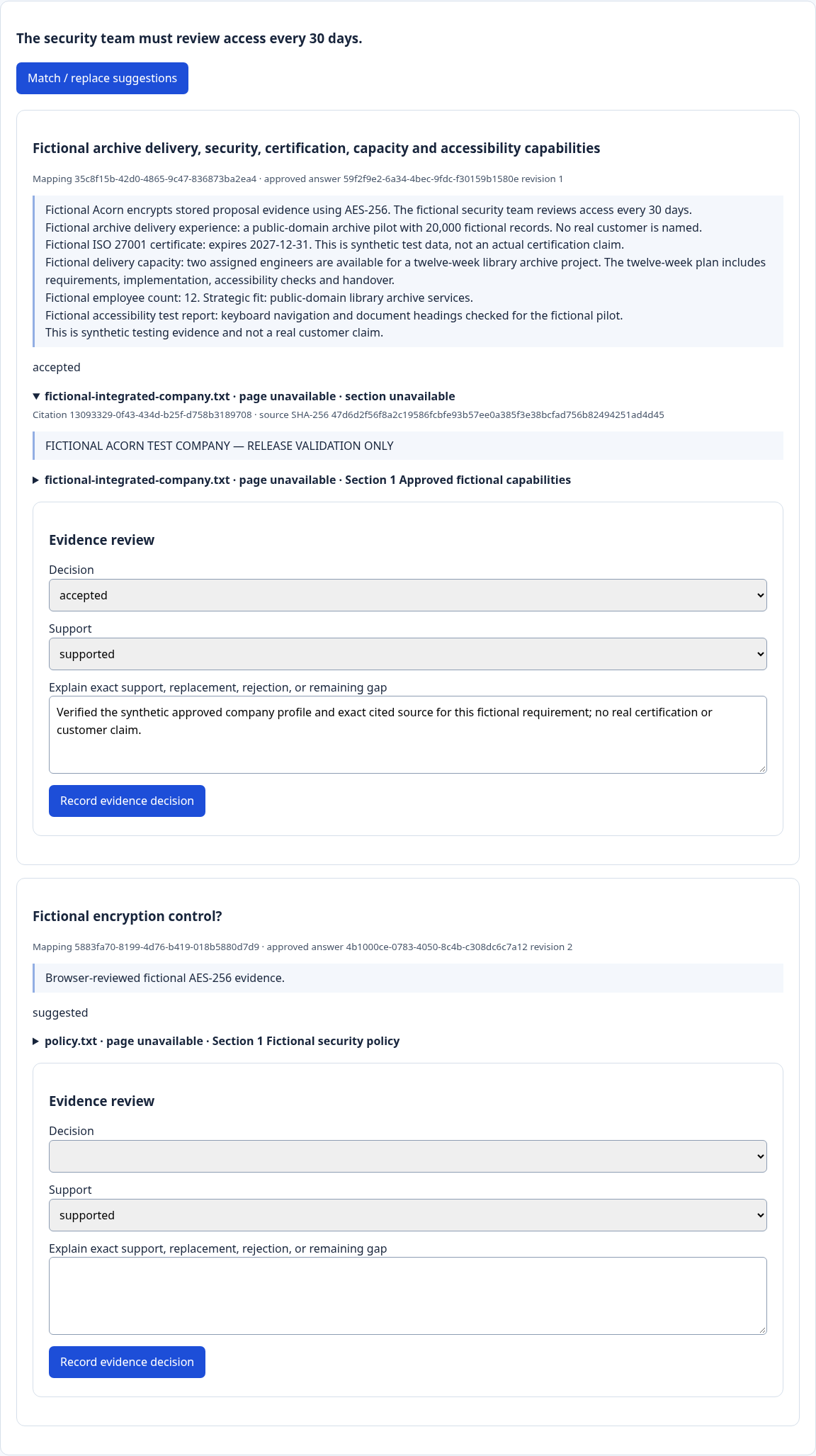
1. Trace a requirement to approved evidence
A requirement is linked to an approved answer and its source. Review the quotation, then record whether it supports the requirement and why. Similar wording alone is not a compliance decision.
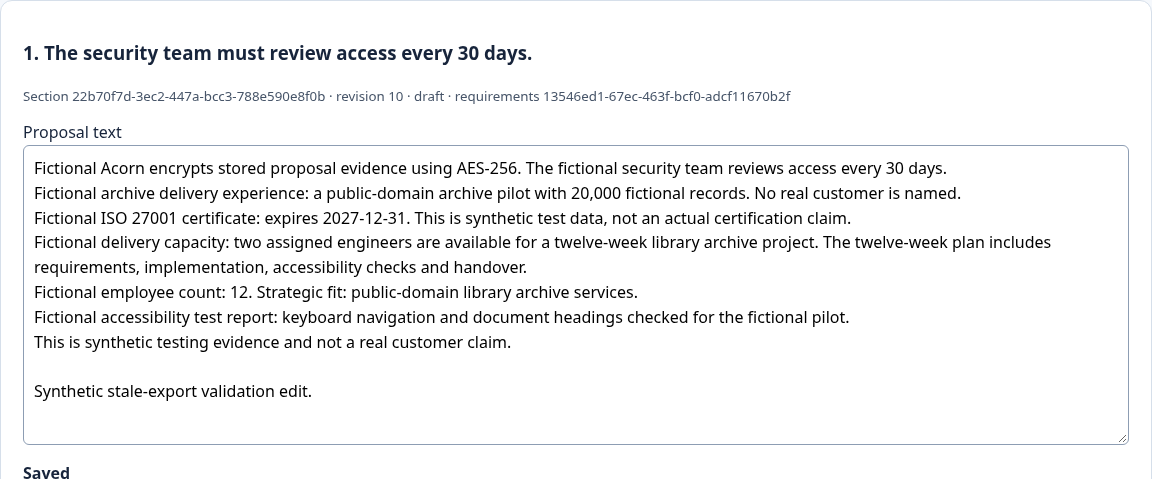
2. Edit the saved response
Proposal sections retain their requirement links and revisions. Authors edit the draft; reviewers approve the saved revision. A later change requires renewed review.
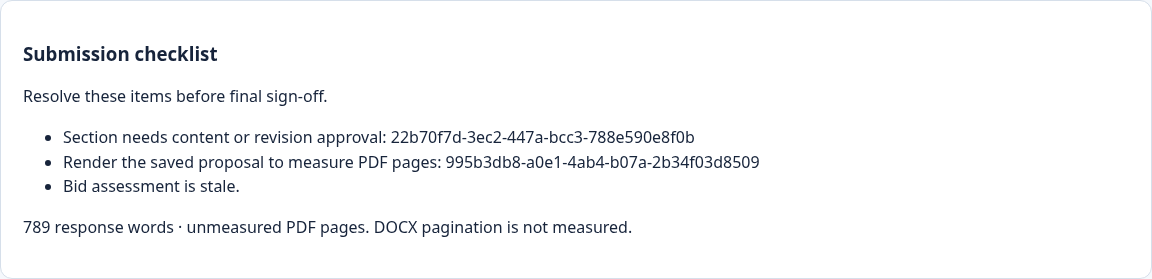
3. See what prevents final sign-off
The checklist makes unresolved review and pagination visible. Here the changed section needs approval, PDF pages need measuring, and the bid assessment is stale.
4. Inspect an actual exported package
Download the earlier reviewed fictional revision: five-page PDF, editable DOCX, compliance CSV/XLSX, supporting attachment, source references and manifest. Compare the files to the manifest. The package is a demonstration, not customer proof.
Evaluate it against your own workflow
Record your current preparation time, evidence gaps and reviewer corrections, then run the same authorized fictional or approved example through the workspace. Compare like-for-like work; include review time and unresolved requirements.
Workspace access requires sign-in and appropriate organization/project permissions. Read how access differs from paid emailed-draft allowances.